Turn an infographic into a hand-drawn animation
Upload a finished infographic or diagram and get an animated clip: a hand draws every line, then colours it in. You design the picture; we animate it.
WhiteboardAnimation.ai turns one finished infographic, diagram or process chart — a PNG, JPEG or WebP up to 10 MB — into a clip where a hand draws every line and then colours it in. It does not build charts from data or write the infographic for you: design the picture in Canva, PowerPoint, Illustrator or an image model, upload it here, and put the clip into your own video edit.
PNG, JPEG or WebP · up to 10 MB · we don’t generate pictures from text
Infographics in, drawing clips out
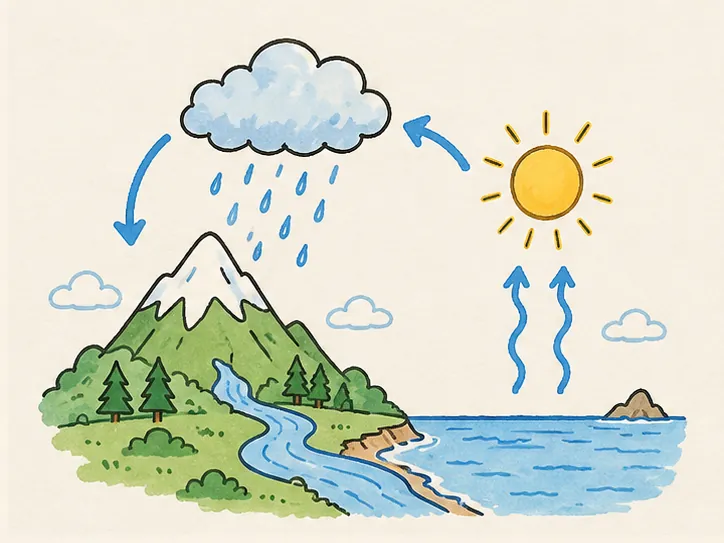
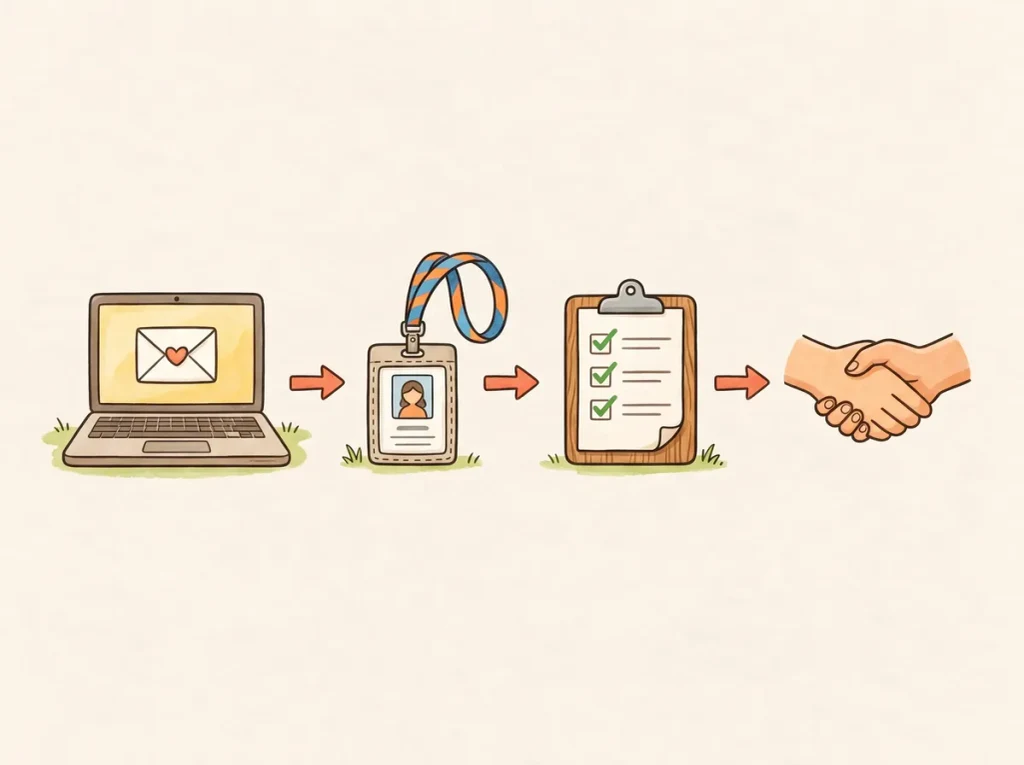
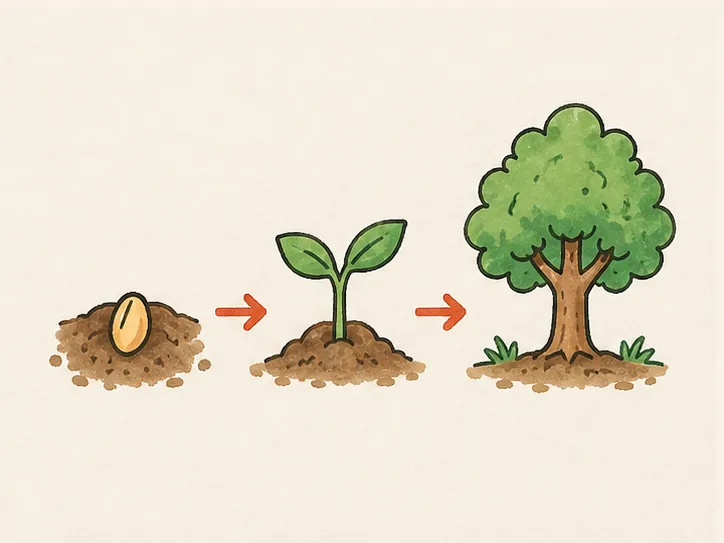
Each picture below was uploaded as it is and drawn by the product with its default settings. Play one to watch the line art go down before the colour.
The picture A cycle diagram: the water cycleArrows, a sun, rain and a river: the outlines come first, so the arrows read before anything is coloured.Use this pictureWasserkreislauf als Whiteboard-Animation: script, prompt and chapters The picture A four-step flow: employee onboardingFour icons joined by arrows, drawn left to right, the way the steps are read.Use this pictureMitarbeiter-Onboarding als Whiteboard-Animation: script, prompt and chapters The picture Stages in a row: seed to treeThree stages and two arrows: each stage is outlined, then the greens fill in.Use this pictureLebenszyklus einer Pflanze als Whiteboard-Animation: script, prompt and chapters
How to animate an infographic
- 01
Finish the infographic as one picture
Lay it out in the tool you already use and export it as a PNG, JPEG or WebP at full size. Flat colour and clear outlines draw best; keep labels large enough to read on a phone.
- 02
Upload it and draw it
Drop the picture into Studio and press Draw it. One drawing costs one credit and starts in about fifteen seconds.
- 03
Set the length, then export
Change the length, hand, style and colour order while it plays — none of them redraws it. Export the clip and add narration and music in your editor.
Settings that suit an infographic
- Length
- Match it to what you will say over it. The examples above run about 30 to 45 seconds; a busier chart deserves longer.
- Style
- Lines + colour finishes the infographic as you made it; Lines only stops at the line art, for a sketched look.
- Colour order
- Subject first colours the figures before the background, so the main shapes are readable early.
- Hand
- Six drawing hands, or none for a clean reveal on slides.
Export it into your edit
Your browser saves the clip as MP4 or WebM, in the picture’s own shape or cropped from the centre to 16:9, 1:1 or 9:16. The free plan exports 720p with a watermark; Starter and up export 1080p without one. Pro adds a transparent background (WebM with alpha, or PNG frames), so the drawing sits on top of your own footage.
What it will not do: generate an infographic from data or a prompt, animate numbers or charts that change value, or add voice-over and music. It draws the picture you give it.