 Whiteboard Animation
Whiteboard animation in After Effects and Premiere Pro
作者 Deniffer Alan发布于
TL;DR The usual After Effects method traces every line of the picture with the Pen tool and reveals it with Trim Paths: one path per stroke, each keyed by hand. Our example pictures took 68 to 4,008 line strokes to draw. The other way is to have the picture drawn here, export it as a transparent PNG sequence at 30 fps, and import that into After Effects or Premiere Pro as one clip, or as one clip per layer.
The After Effects way: trace and reveal each line
Adobe’s own write-on tutorial works like this, and it is how most whiteboard animations made in After Effects are built.
- 01
Import the artwork
Bring the picture in as a layer. A layered Illustrator or Photoshop file can come in as a composition, one layer per element.
- 02
Trace a line
Add a shape layer and trace one line of the picture with the Pen tool, with a stroke wide enough to cover it.
- 03
Reveal it
Add Trim Paths to the shape and key End from 0% to 100%. Use the stroke as a matte for the artwork, and that line appears as if drawn.
- 04
Repeat for every line
Do the same for each line, offset each one in time, then animate a hand image to follow the line being drawn.
It gives full control, and it is slow in proportion to the picture. To see how much there is to trace, we counted the strokes in the drawings of our own examples:
| Example | Line strokes | Colour strokes | As drawn | Line art |
|---|---|---|---|---|
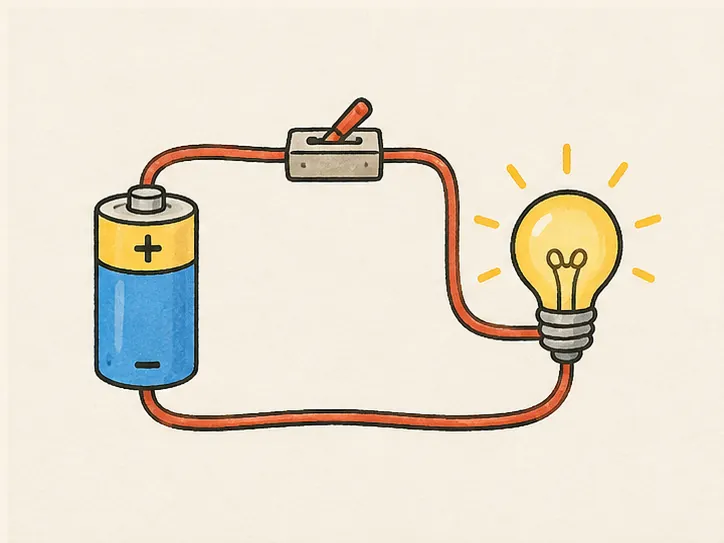
| A simple circuit | 68 | 424 | 0:31 | 0:12 |
| How a seed grows | 150 | 383 | 0:31 | 0:12 |
| The solar system | 258 | 326 | 0:32 | 0:13 |
| The water cycle | 366 | 571 | 0:43 | 0:23 |
| Lighthouse bay | 386 | 421 | 0:52 | 0:30 |
| Morning kitchen | 1,405 | 260 | 1:07 | 0:51 |
| Ladybug life cycle | 4,008 | 364 | 1:58 | 1:38 |
Our strokes are short, and a person tracing by hand would join many of them into one path, so these are an upper bound on the paths you would draw. Even so, the simplest diagram here is dozens of paths, each traced, keyed and offset, before any colour goes in.
The clip way: have it drawn, import one clip
Upload the finished picture and it is drawn stroke by stroke: line art first, then colour, at the length you set. Then export it in the format your editor reads.
| Export | What you get | Use it for |
|---|---|---|
| PNG sequence | A zip of numbered PNG frames (00001.png, 00002.png, …) at 30 fps, with only the drawing and the hand: no paper behind it. | Laying the drawing over footage in After Effects or Premiere Pro, with transparency. |
| Layers | One zip with a clip per layer: the background and each subject apart. Keep the original timing and they line up when stacked. | Moving, scaling or timing the subject apart from its background. |
| WebM with alpha | One small transparent file. | Editors that read VP9 transparency. |
| Green-screen MP4 | The drawing on solid green. | Any editor with a chroma key: Ultra Key in Premiere Pro, Keylight in After Effects. |
| MP4 or WebM on paper | The clip as you see it in Studio. | A finished shot, cut in as it is. |
A PNG sequence is large. On our own exports a 1080p drawing came to up to about 37 MB of PNGs per second of drawing, against about 1 MB for a transparent WebM; the export dialog shows the estimate before it starts. Formats, sizes and plans: Transparent export.
Import the PNG sequence into After Effects
- 01
Unzip it
Unzip the export into a folder of its own; the frames are numbered in order.
- 02
Import the first frame as a sequence
File → Import → File, select
00001.pngand check the sequence option at the bottom of the dialog (PNG Sequence). After Effects imports the numbered files as one footage item. - 03
Check the frame rate
After Effects reads a sequence at the rate in its Sequence Footage preference, 30 fps unless you changed it: the rate the export uses. If it differs, select the footage and choose File → Interpret Footage → Main, then set Assume this frame rate to 30.
- 04
Put it over your footage
Drag the footage item into your composition above your background. The PNG frames carry their transparency, so nothing needs keying.
Layers: import each layer’s folder the same way and stack them with the background lowest. With the original timing kept, every layer runs on the drawing’s own clock, so starting them on the same frame replays the drawing; move one later, or scale and position the subject, and it still draws itself.
Import it into Premiere Pro
- 01
Set the frame rate first
Premiere reads still-image sequences at its Indeterminate Media Timebase: Edit → Preferences → Media on Windows, Premiere → Preferences → Media on macOS. Set it to 30 fps before you import.
- 02
Import as an image sequence
File → Import, select the first numbered PNG, tick Image Sequence and import. Premiere makes one clip, one frame per file.
- 03
Lay it above your footage
Put the clip on a track above your footage or slides; the transparency comes with it.
- 04
Or key a green-screen MP4
Exported on green instead, put the MP4 above your footage, add Ultra Key and pick the green.
Fit it to your voice-over before you export
Change the timing on our timeline, not in your editor.
- Length: set the drawing’s total length to the seconds the narration takes, then export. It is drawn again at that length, every frame at 30 fps; speeding a clip up in After Effects or Premiere drops frames, and slowing it down repeats or blends them.
- Order and pace: draw the subject before the background, or give the line art more time than the colour, by dragging its parts on the timeline. Free: nothing is redrawn and no credit is spent.
- Hand: one of six, or none. The export carries the hand you see, so a clip with no hand is ready for a hand of your own in After Effects. See Hand styles.
When to trace it yourself anyway
- The order of every stroke matters to you, beyond choosing subject first or background first and arranging the parts on the timeline.
- You need more than 1080p or vector paths: exports go up to 1080p or the picture’s own size, never upscaled.
- You want to animate the lines after they are drawn, to wiggle, morph or recolour them: a drawn clip is frames, not paths.
For a drawing over footage or slides, though, the clip is the drawing: the guide How to make a whiteboard animation covers the steps before and after it.
Sources
The After Effects and Premiere Pro steps follow Adobe’s help pages; we have not run them in either app for this guide.
- Use a write-on effect to create a dynamic title (After Effects) · read 2026-10-22
- Paint and path operations, shape attributes for shape layers · read 2026-10-22
- Preparing and importing still images (After Effects) · read 2026-10-22
- Import images as an image sequence (Premiere) · read 2026-10-22
FAQ