 Whiteboard Animation
How to make a whiteboard animation
著者 Deniffer Alan公開日
TL;DR A whiteboard animation is a hand drawing pictures while a voice explains them. Write the script first, split it into beats, make one finished picture per beat, have each picture drawn as a clip, set each clip to the length of its part of the voice-over, then cut the clips and the voice-over together in your video editor. This site does the drawing; the script, the voice and the edit stay with you.
What a whiteboard animation is made of
Four things, made in this order. Only the third is animation; the rest is writing and editing.
- 01
The script
The words, written first. Everything after it is timed to them.
- 02
The pictures
One finished illustration for each idea in the script: a diagram, a scene, a product, a logo.
- 03
The drawing clips
Each picture drawn by hand on screen, line art first, then colour. This is the part this site makes.
- 04
Voice-over, music and the edit
Recorded and cut together in the editor you already use: CapCut, Premiere Pro, Final Cut Pro, DaVinci Resolve or Canva’s video editor.
Apps like VideoScribe do all four inside one program, from their own image library. Here you bring your picture and keep your own editor; the VideoScribe comparison shows the same picture in both.
Write the script and split it into beats
A beat is one idea the viewer should watch being drawn. Each beat gets one picture and one clip.
- Read the script aloud with a timer, and note how long each beat takes to say. That number is the length its drawing should run; you set it in step four.
- One idea per picture. The water cycle is one beat: evaporation, condensation, rain and the river, in one picture drawn in 43 seconds.
- Split a long idea rather than cramming it into one picture: a beat that takes a minute to explain is easier to follow as two pictures than as one crowded one.
Make one finished picture per beat
The drawing is made from your picture; nothing is invented. What you upload is what gets drawn.
- Flat illustrations, diagrams and logos draw best: clear outlines, flat colour, a plain background.
- Keep words large or leave them out. Thin letters are traced like any other line; titles you need read are easier to add in your editor.
- Use one style for every beat, so the clips look like one video: the same tool, the same prompt, the same colours.
- One PNG, JPEG or WebP per beat, up to 10 MB. No picture yet? How to prepare a picture has copy-paste ChatGPT and Midjourney prompts and the pictures they made.
Draw each picture
Upload the picture in Studio and press Draw it. One drawing costs one credit and usually starts within about fifteen seconds.
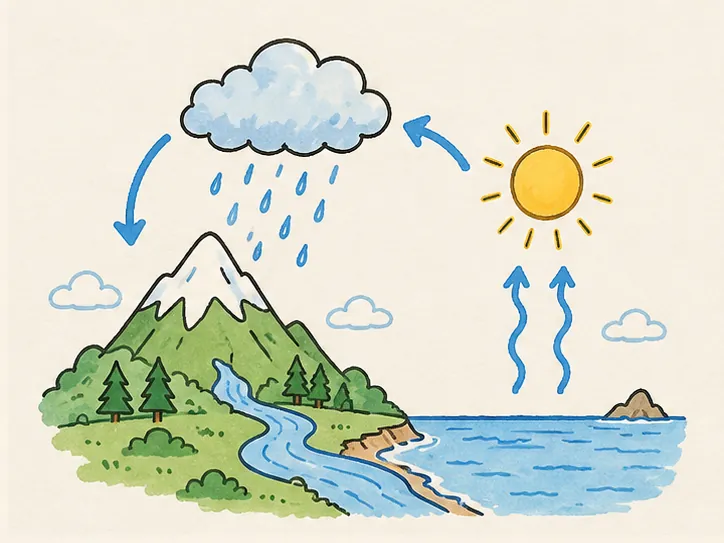
How long a drawing comes out depends on how much there is to draw. These are the lengths our own examples came out at, before anyone changed them:
| Example | As drawn | Line art |
|---|---|---|
| A simple circuit | 0:31 | 0:12 |
| Employee onboarding | 0:29 | 0:12 |
| The water cycle | 0:43 | 0:23 |
| Lighthouse bay | 0:52 | 0:30 |
| Morning kitchen | 1:07 | 0:51 |
| Weathering and erosion | 2:21 | 1:56 |
A simple picture comes out near half a minute; a busy one with many labels ran well over two. You do not have to keep that length: the next step sets it.
Set each clip to its part of the voice-over
Change the drawing after it is drawn. None of these redraws the picture or spends a credit; every export uses what you set.
- 01
Total length
Type the seconds you timed for the beat in Length beside the player, up to 10 minutes. Every part of the drawing keeps its share of the time.
- 02
Order and pace
Open the timeline under the player: drag a part to draw the background before the subject, or drag its edge to linger on what the script dwells on. See Timeline editing.
- 03
Colour order
Subject first colours the figures before the background; background first sets the scene, then the subject. Lines only stops at the line art, for a sketched look. See Drawing order.
- 04
Hand
One of six hands holds the pen through the whole drawing, or none for a clean reveal on slides. See Hand styles.
A part can go down to a fifth of the length it was drawn with, and never under 0.6 seconds: any shorter reads as a flicker, not as drawing.
Export and cut it together in your editor
Export each clip, lay the clips on your timeline in script order, and put the voice-over under them.
- On paper or a colour: MP4 or WebM, the clip as you see it in Studio.
- Over your own footage or slides: a transparent WebM, a PNG sequence, or a green-screen MP4 for your editor’s chroma key. See Transparent export.
- In any shape: the picture’s own, 16:9, 9:16 or 1:1, so one drawing exports for a YouTube video and for Shorts without drawing it again.
- Free to export: exports render in your browser and spend no credits. Which plan exports 1080p, transparent and layered clips is on Pricing.
If a clip runs long against the voice, change its length here and export it again rather than speeding it up in the editor: the drawing is drawn again at the new length, every frame at 30 fps, where an editor’s speed change drops frames to go faster and repeats them to go slower.
Editing in After Effects or Premiere Pro? Whiteboard animation in After Effects and Premiere Pro covers importing the PNG sequence and the layered export.
What goes wrong, and the fix
The drawing runs longer than the beat
A busy picture has more to draw. Set the total length to the beat, or split the picture into two beats.
Words come out as squiggles
Small letters are traced stroke by stroke and read badly at video size. Make them bigger, or leave them out and add titles in your editor.
The clips don’t look like one video
Make every picture with the same tool and prompt, and draw them with the same hand and colour order.
A photo looks scribbly
A photo has texture, not outlines. It still draws, but turn it into a flat illustration first if you want it to look hand-drawn; the guide to preparing a picture has a prompt for that.
FAQ