How to prepare a picture for whiteboard animation
TL;DR WhiteboardAnimation.ai draws a picture you already have; it does not make one from text. Bring one finished illustration, diagram or piece of flat artwork with clear dark outlines, as a PNG, JPEG or WebP up to 10 MB. No picture yet? Make one with ChatGPT, Midjourney or any image tool using the prompts below, then upload it to Studio.
What kind of picture draws well
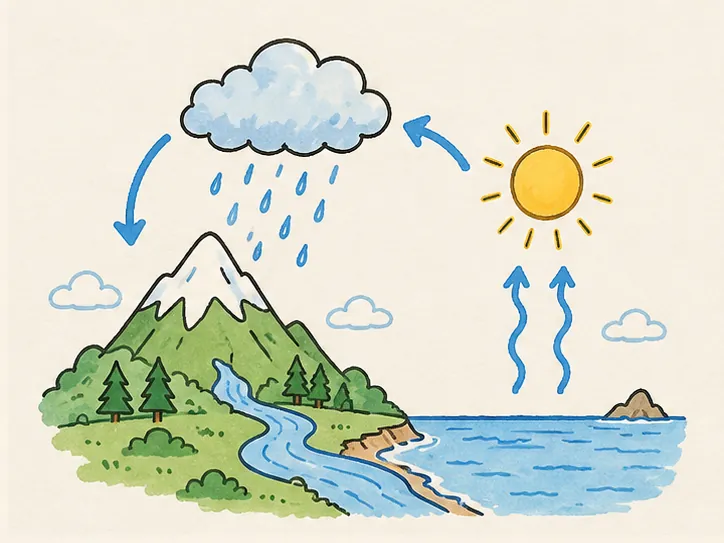
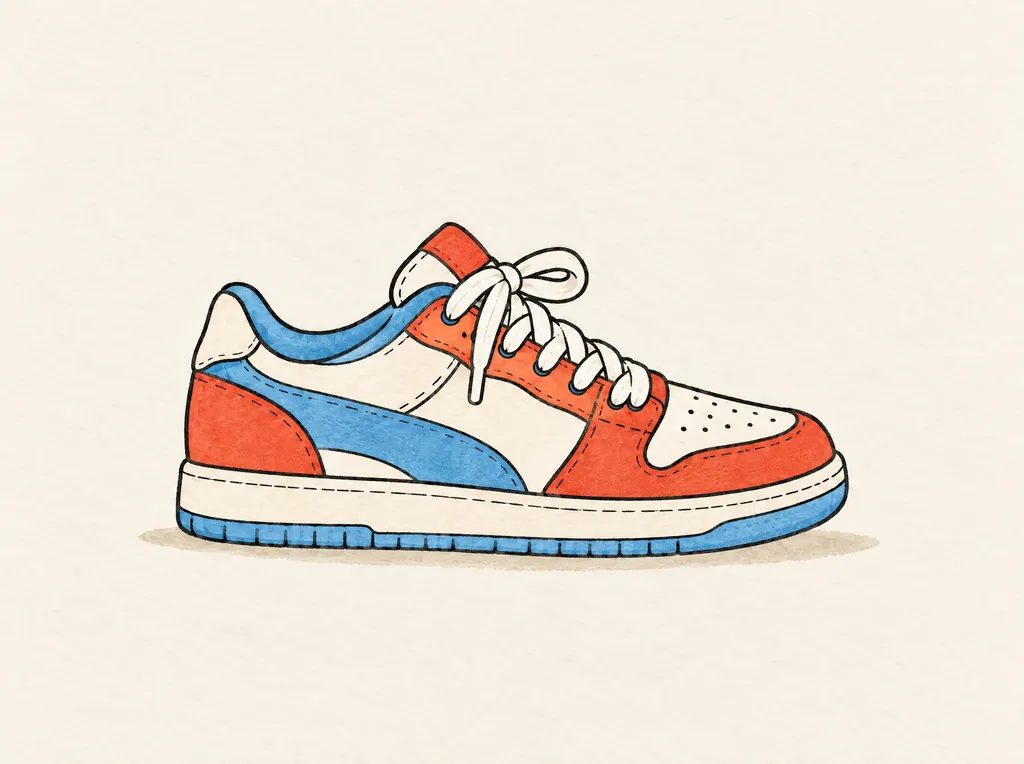
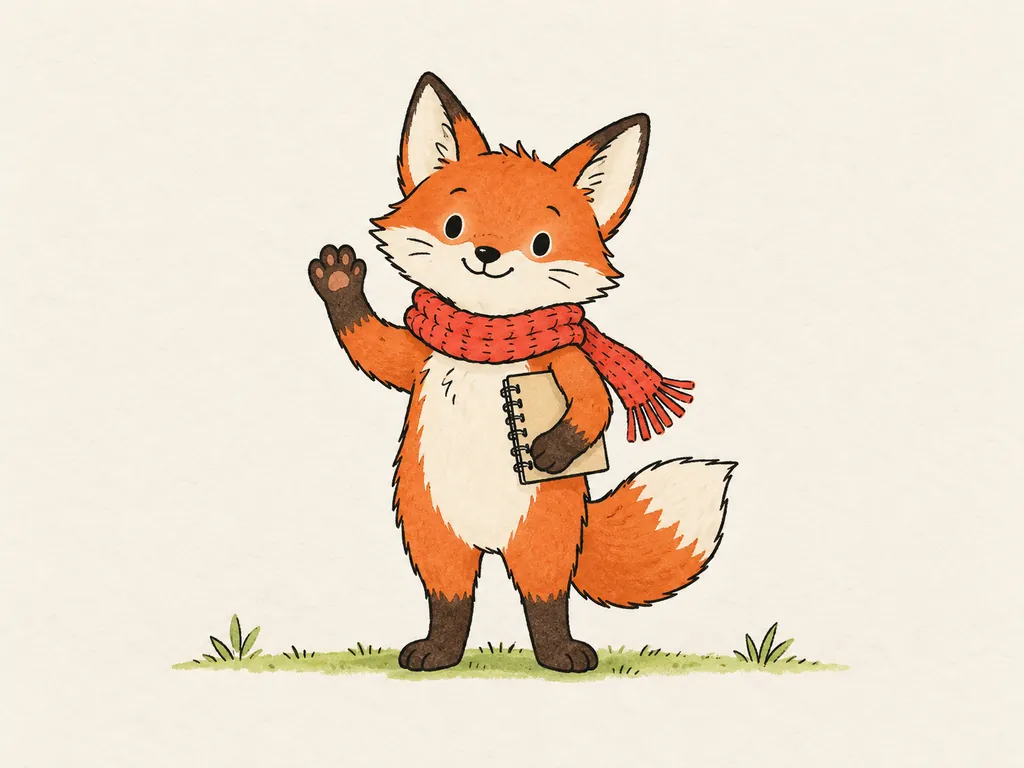
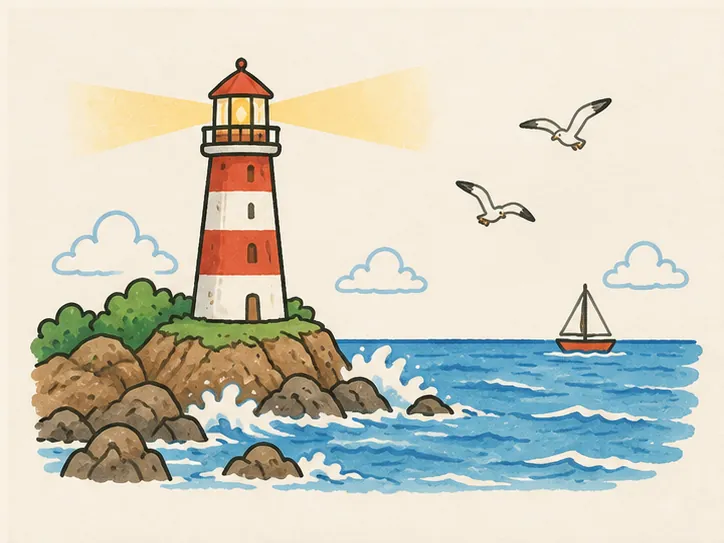
Finished, flat pictures with clean dark outlines draw best: illustrations, diagrams, icons, characters and product drawings. The drawing follows the outlines first, then fills the colour, so the clearer the lines and the flatter the colour, the cleaner the strokes.
- Finished. Outlines closed and colour filled in: what you upload is what the last frame looks like.
- Clear dark outlines. Even, unbroken black or dark lines around every shape.
- Flat colour. A few solid colours, little shading, no photo texture.
- One clear subject. A main subject with space around it, not a busy collage.
- Plain, light background. White or paper-coloured, so the subject stands out.
- Sharp. At least 1024 px on the long side, not blurry or heavily compressed.
What draws badly
Pictures without clear outlines draw badly: photos, soft 3D renders, gradients, faint pencil and small text. They still upload, but the outline pass has little to follow, so the strokes come out busy or blotchy. Turn them into a flat illustration first (prompt below).
Photos
A photo has edges in its texture and lighting, not outlines, so the sketch looks scribbly rather than drawn.
Fix: Redraw it as a flat illustration with the photo prompt below.
Soft 3D renders and gradients
Smooth shading and glow have few hard edges; the colour arrives in patches instead of shapes.
Fix: Ask your image tool for flat colours, no shading, no gradients.
Small text and fine print
Thin letters are traced like any other line and read as squiggles at video size.
Fix: Ask for no text, and add titles in your video editor.
Faint pencil sketches
Light grey lines on grey paper are hard to tell from the paper itself.
Fix: Scan it, raise the contrast until the paper is white and the lines are black.
Busy collages and screenshots
Many small, overlapping things take long to draw and are hard to follow on screen.
Fix: One subject per picture; split a busy idea into several pictures.
Tiny, blurry or heavily compressed files
Blur and JPEG blocks become wobbly lines.
Fix: Export at 1024 px or more on the long side, as PNG where you can.
How to make one with ChatGPT, Midjourney or another tool
Ask any image tool for a flat illustration with clean black outlines, flat colours, a plain background and no text. Copy a prompt below, replace the part in brackets, and download the result as PNG. Every example picture on this site was made this way.
[Your subject] as a flat illustration: clean black ink outlines, flat colours, plain off-white background, one clear subject with space around it, no shading, no gradients, no text.
Hand-drawn diagram of [your process] in [3 to 5] steps joined by arrows, a simple picture for each step, clean black ink outlines, flat colours, plain off-white background, no text.
Redraw this photo as a flat illustration: clean black ink outlines, flat colours, plain off-white background, keep the subject and the layout, no shading, no text.
- ChatGPT
- Paste the prompt and say the shape you need: "wide, 16:9" for YouTube and slides, "tall, 9:16" for Shorts and Reels. To redraw a photo, attach it first. If words appear, reply "the same picture with no text".
- Midjourney
- Paste the prompt and add
--ar 16:9 --no text, shading(or--ar 9:16for vertical video). Upscale the one you like and download it. - Other tools
- Gemini, Adobe Firefly, Ideogram, Canva and other image generators work the same way: the prompt matters more than the tool. Download the largest PNG it offers.
Prompts we used, and what they drew
These are the prompts behind three of our examples, word for word. Each picture links to its page, where you can watch it drawn.
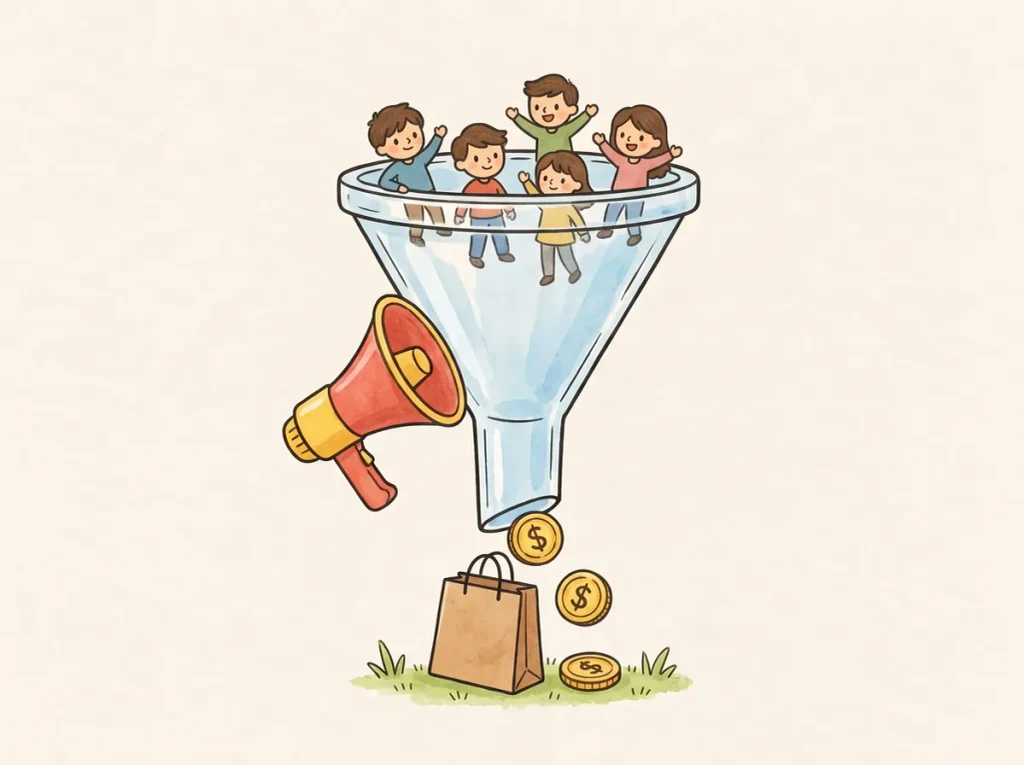
- Marketing funnel: watch it drawn
Prompt we used A marketing funnel: a crowd of small people at the wide top, a red megaphone beside it, a shopping bag and gold coins coming out of the narrow end. Coloured pencil and watercolour marker, clean black ink outlines, warm off-white paper, no text.
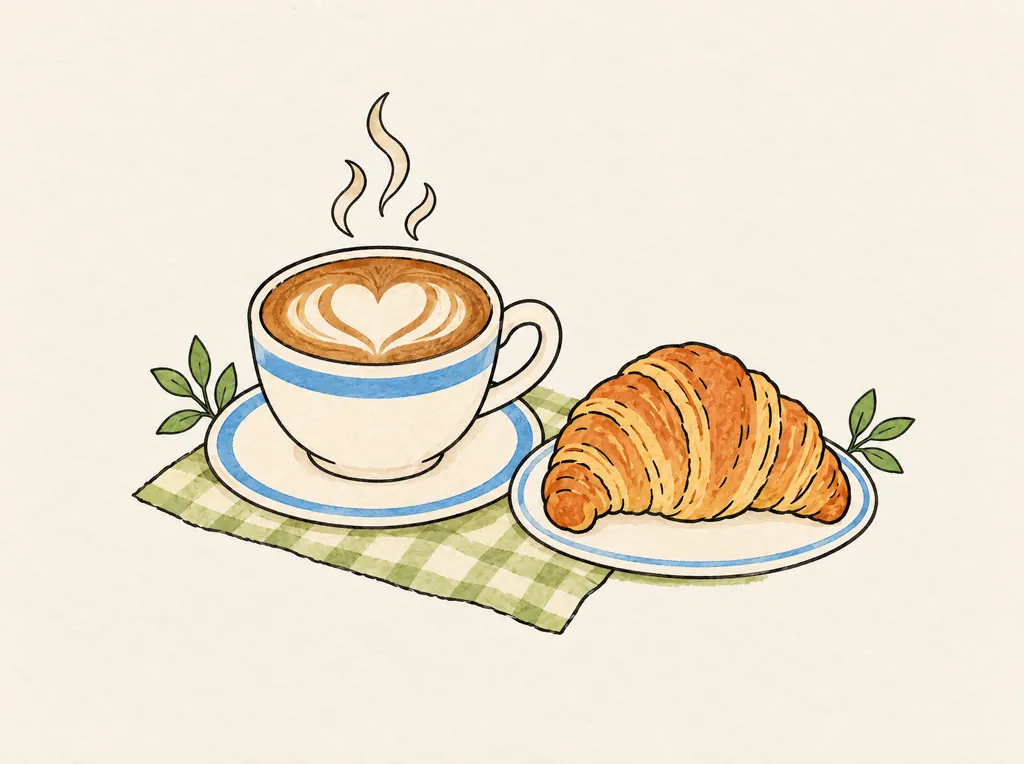
- Coffee & croissant: watch it drawn
Prompt we used A cup of coffee with latte art on a saucer and a croissant beside it on a checked napkin. Coloured pencil and watercolour marker, clean black ink outlines, warm off-white paper, no text.
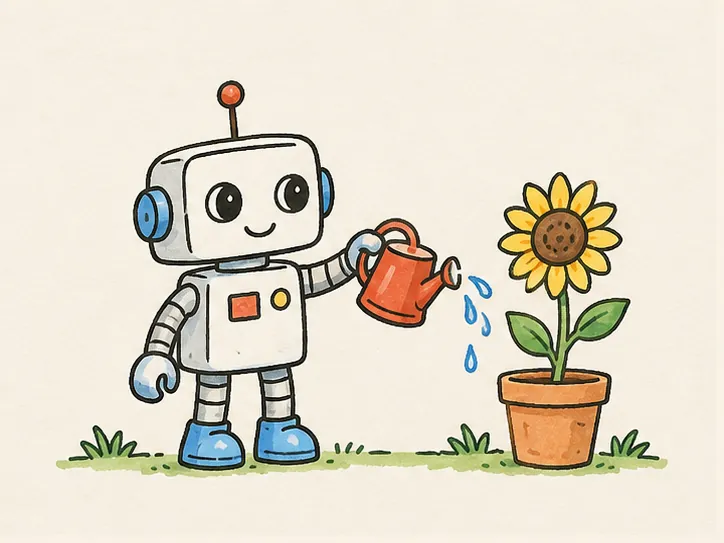
- Robot gardener: watch it drawn
Prompt we used A small friendly robot watering a sunflower in a terracotta pot with a red watering can. Coloured pencil and watercolour marker, clean black ink outlines, warm off-white paper, no text.
Fix the picture you already have
Most pictures need only three checks before upload: a plain background, enough pixels and the right file type. You can do all three in any image editor, or in the image tool that made the picture.
Background
Use a plain white or light background. Remove clutter behind the subject, and put a cut-out on white rather than leaving it see-through.
Size and shape
Aim for 1024 to 1920 px on the long side; larger pictures are scaled down before drawing, so more only makes the upload slower. Make the picture the shape of your video (16:9, 9:16 or 1:1) so nothing important sits at the edge.
File type
Upload PNG, JPEG or WebP, up to 10 MB. Save HEIC photos, SVG, PDF or GIF files as PNG first. PNG keeps lines sharpest.
Upload it to Studio
Open Studio, drop in the picture and press Draw. It is drawn stroke by stroke, outline first and then colour; set the pace and the hand, then export the clip for your own edit.
- Open Studio and sign in.
- Drop your picture on the page, or choose it from your computer.
- Press Draw, adjust the outline and colour time or the hand, and export.
No picture at all? Pick one of the examples and use its prompt as a starting point.