 Whiteboard Animation
Turn an image into a drawing animation: five ways, compared
By Deniffer AlanPublished
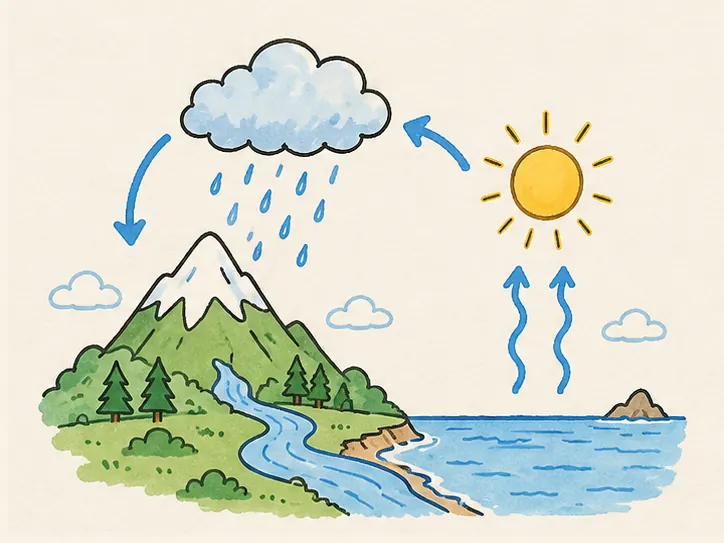
TL;DR There are four ways to make a finished picture look as if it is being drawn: trace it line by line in After Effects (full control, hours of work), wipe it on with masks in CapCut (quick, but a wipe, not strokes), re-draw it yourself in Procreate with time-lapse on (real strokes, your own hand-work), or have a model or a drawing tool do it. We ran our water-cycle picture through Kling 3.0 in Adobe Firefly’s free tier: a hand drew the mountain, then parts faded in with their colour already on, and the 4:3 picture came back cropped to 16:9. Here the same picture is drawn line art first, every outline, then coloured region by region, in 1 min 4 s.
Drawing reveal methods compared
The same goal, a finished picture appearing as if drawn, done five ways. The AI and WhiteboardAnimation.ai rows come from our own runs of the same picture; the rest from each maker’s help pages, read 30 October 2026.
| Method | Effort | Needs vector or line art? | Follows real strokes? | Drawing hand? | Cost | Output |
|---|---|---|---|---|---|---|
| After Effects: Trim Paths | High: one traced path per line, each keyed | Layers help; you trace the lines yourself | Yes, the paths you trace | Only if you animate one | Creative Cloud subscription | A render of your composition |
| CapCut: mask and keyframes | Low | No | No: a shape wipes the picture on | No | Free editor | The format and resolution you pick on export |
| Procreate: re-draw with time-lapse | High: you draw the whole picture again | No; the picture is your tracing reference | Yes, your own | No; the strokes appear on their own | Pay once, iPad only | Time-lapse video, 1080p to 4K |
| AI image to video: Kling, Runway | Low: a prompt and one or two frames | No | No: parts drawn, parts faded in (our run) | Yes, a realistic one (our run) | Free tiers with daily or one-time credits | A short clip (Runway: 2 to 10 s); ours was 5 s, 1280 × 720 |
| WhiteboardAnimation.ai | Low: upload, then re-time if you like | No; any PNG, JPEG or WebP | Yes: line art first, then colour | Six hands, or none | 5 free credits on sign-up; exports watermarked until you buy | MP4, WebM, PNG sequence, green screen |
AI image to video: what Kling drew from our picture
Image-to-video models can be told to draw, but they treat your picture as a frame to reach, not a set of lines to follow.
Runway’s own guide says the image you upload acts as the first frame of the video, and your prompt should describe the motion. Start from a finished picture and it is on screen from frame one, so there is nothing left to draw. A drawing reveal needs the opposite: blank paper first, your picture last. Adobe Firefly’s Generate video takes a first and a last frame, and offers Kling 3.0 among its partner models on its free daily generations, so that is what we ran.

Prompt: a hand with a black marker draws the picture line by line, outlines first, then colours it in. A realistic hand drew the mountain outline, then the trees, river and sun arrived with their colour already on, the cloud faded in as a ghost, and the black marker left a blue line. The hand left at about three quarters; the arrows and small clouds appeared without it. The 4:3 picture came back cropped to 16:9, with the bottom of the shore cut off. No watermark on the download.
- What it costs: Firefly gives free daily generations with no plan. After this one 5-second clip the counter read 0 generations left today.
- Runway: its Free plan gives 125 one-time credits and watermarks every video; Gen-4.5, at 12 credits a second, needs Standard ($15 a month, or $12 billed yearly). The new Free account we opened on 30 October had 0 credits; Runway’s help says free credits are withheld when an account or network was linked to fraud. So we have not run Runway.
- Every run is a new guess. The clip is a new video each time, not your picture’s lines, so a change of length or order means generating again, and the model may redraw details its own way.
After Effects: Trim Paths on a traced path
Adobe’s write-on tutorial does it for a logo, one letter at a time. A whole picture is the same steps, repeated for every line. We have not run it for this guide.
- 01
Import the artwork as layers
Import the file as Composition – Retain Layer Sizes, one element per layer, stacked in the order they should appear.
- 02
Set up the pen
Set the Pen tool’s stroke wide enough to cover the line you will trace, and the fill’s opacity to zero.
- 03
Trace one line
Select the layer, choose Layer > New > Shape Layer, and with the Pen tool click along the line to trace a path over it.
- 04
Animate it with Trim Paths
In the Timeline, select the shape layer’s Contents, click Add > Trim Paths, set an End keyframe at 0% at the start and at 100% a dozen frames later.
- 05
Reveal the artwork through it
Set the artwork layer’s TrkMat to Alpha Matte of the shape layer above it, so the line appears as the path grows.
- 06
Repeat for every line
Start each line’s first keyframe where the previous one ends. There is no hand: animate a hand image yourself if you want one.
| Example | Line strokes | Colour strokes | As drawn | Line art |
|---|---|---|---|---|
| The water cycle | 366 | 571 | 1:03 | 0:21 |
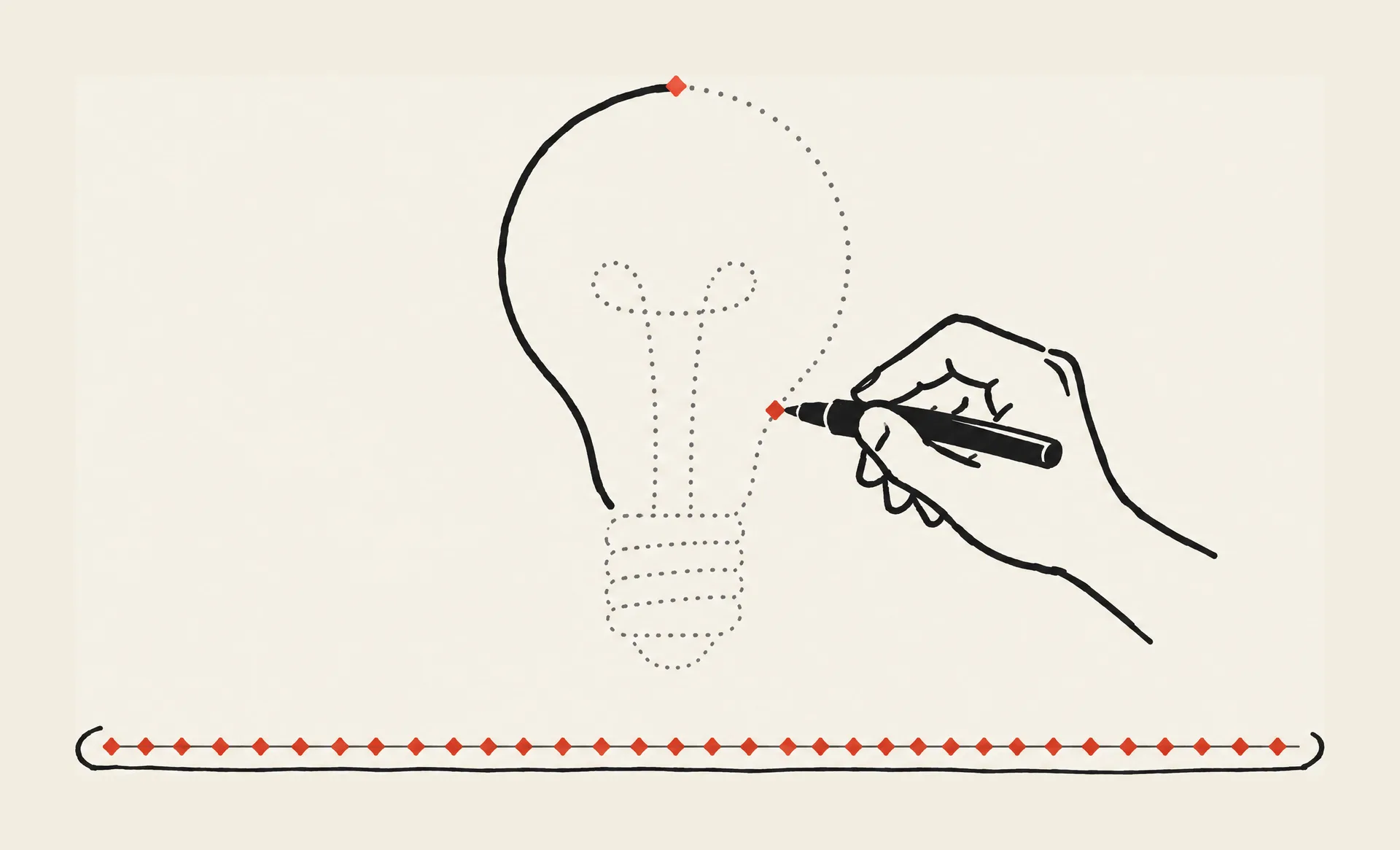
A person would join many of those short strokes into longer paths, but it is still hundreds of paths for one diagram. To bring a drawn clip into After Effects instead, see Whiteboard animation in After Effects and Premiere Pro: the steps above in full, and how to import a transparent PNG sequence.
CapCut: a mask reveal
CapCut has no tool that follows the lines of a picture. What its help pages describe is shape masks and keyframes, which together give a wipe. We have not run it for this guide.
- 01
Add the picture
Create a project, upload the picture to Media and drag it onto the timeline.
- 02
Mask it
Select the clip, open Mask and pick a shape. Feather, size, position, rotation and invert are its settings.
- 03
Keyframe the change
CapCut animates a setting with keyframes: move the playhead, click the diamond beside the setting, change it at a later point, and CapCut fills in the motion between.
- 04
Export
Click Export and choose the resolution and format.
The picture appears behind a moving edge: fine for a title card, but the colour arrives with the lines and nothing traces the outlines.
Procreate: re-draw it with time-lapse on
If you can draw, the most honest drawing video is your own. Procreate records every stroke on a canvas; the finished picture can sit under it without showing. We have not run it for this guide.
- 01
Make a canvas with the time-lapse you want
Time-lapse is on by default, at 1080p and Good Quality. For 4K or lossless, set Time-lapse settings on a Custom Canvas before you start: they cannot change mid-project.
- 02
Insert the picture as a private layer
Actions > Add, slide Insert a file left and tap Insert a private file (PNG, JPEG or PSD). A private layer does not appear in the time-lapse.
- 03
Trace, then colour
Draw the outlines on a new layer above it, then colour them. Every stroke is recorded in the order you make it.
- 04
Export the video
Actions > Video > Export Time-lapse video, Full length or 30 Seconds.
Real strokes, in your order, but the drawing takes as long as it takes you, and no hand appears in the video.
WhiteboardAnimation.ai: the picture drawn line by line
Upload the finished picture and a hand draws it: every outline first, then the colour, region by region.

The same picture at a quarter, half, three quarters and the end: the outlines first, the colour after, the picture’s own 4:3 frame and paper at the end.
- Re-time without redrawing: set the total length to your narration, reorder or shorten line art and colour on the timeline, or play lines only. None of it redraws or spends a credit.
- The hand: one of six hands, or none, switched at any time; the export carries the one you see.
- For your editor: MP4 or WebM, a green-screen MP4, and on Pro a transparent WebM, a PNG sequence or each layer as its own clip (Transparent export).
- Free to try: 5 credits on sign-up, one per picture. Free exports are 720p and watermarked; any credit pack (20 for $10) or plan removes the watermark and unlocks 1080p. Pricing.
Pictures from ChatGPT or Midjourney
A generated picture is a flat image like any other, so all five methods take it. It draws best here when it has clean dark outlines on a plain background: our water-cycle picture was itself made from a text prompt asking for coloured pencil and marker with clean black ink outlines on off-white paper. Prepare a picture has the prompts we use and what to avoid. To draw a folder of them from Claude or ChatGPT, see MCP.
Which to use
A logo or a few lines, full control
After Effects. The work grows with every line, so keep it to simple artwork.
A quick reveal for a short
A CapCut mask. It looks like a wipe, not a drawing.
You drew it, or will
Procreate time-lapse: your own strokes, at your own pace.
A finished illustration drawn by a hand
WhiteboardAnimation.ai: line art then colour, in the picture’s own frame, re-timed for free.
An AI video model is worth a try for a stylised clip of an artist at work, if you can accept a different drawing each time and a crop to its frame. For whole explainer videos with scenes and voice-over, see Whiteboard animation software compared; Doodly vs VideoScribe shows what two of them do with this same picture.
Sources
Steps and prices from each maker’s pages, read 30 October 2026; we have not run After Effects, CapCut or Procreate for this guide. The Kling run and the Runway account are ours, the same day.
- Use a write-on effect to create a dynamic title (After Effects) · read 2026-10-30
- Paint and path operations, shape attributes for shape layers · read 2026-10-30
- Mask video online (CapCut) · read 2026-10-30
- How to add keyframes in CapCut PC · read 2026-10-30
- Video: Time-lapse (Procreate Handbook) · read 2026-10-30
- Add: Insert a Private Layer (Procreate Handbook) · read 2026-10-30
- Procreate for iPad · read 2026-10-30
- Image to Video Prompting Guide (Runway) · read 2026-10-30
- Creating with Gen-4.5 (Runway) · read 2026-10-30
- Free plan details (Runway) · read 2026-10-30
- Where are my Free Credits? (Runway) · read 2026-10-30
- Runway pricing · read 2026-10-30
- Adobe Firefly plans · read 2026-10-30
FAQ