 Whiteboard Animation
Animate a diagram being drawn, step by step
By Deniffer AlanPublished
TL;DR To animate a diagram so it looks drawn on a whiteboard, something has to know its lines and the order to draw them in. In PowerPoint you give each part a Wipe entrance and chain them with After Previous (a wipe, not strokes), or draw the diagram in ink and apply the Replay animation. On a web page, SVG `stroke-dashoffset` draws each path in the order you time it: we ran a flow chart and a map route that way in Chrome. In After Effects, Trim Paths does the same for vector paths, and Adobe’s own tutorial uses it to draw a route on a map. Here you upload the finished diagram as a picture and a hand draws every outline, then the colour, in 1 min 4 s for our water-cycle diagram; you choose lines then colour, whose colour goes first and how long each pass takes, but not the order of individual boxes inside the line art.
Ways to draw a diagram on screen
The same goal, a diagram that appears line by line, done five ways. The SVG and WhiteboardAnimation.ai rows come from our own runs; PowerPoint and After Effects from Microsoft’s and Adobe’s help pages, read 1 November 2026.
| Method | You start from | Follows the lines? | Order of steps | Hand | Output |
|---|---|---|---|---|---|
| PowerPoint: Wipe entrance | Shapes, arrows and text on a slide | No: each object is wiped in from one side | Yours: one effect per object, After Previous, reorder in the Animation Pane | No | Slide show, or an MP4 via Create a Video (up to 4K on Windows) |
| PowerPoint: Ink Replay | Ink you draw with a pen or finger | Yes: your strokes, in the order you drew them | The order you drew in | No | Replay animation in a slide show; Microsoft 365 subscribers only |
SVG stroke-dashoffset | Vector paths in an SVG file | Yes: each path draws from its start to its end | Yours: a start time per path | No, unless you animate one | An animation on a web page |
| After Effects: Trim Paths | Vector artwork, one path per line | Yes, the paths you have or trace | Yours: keyframes per path | Only if you animate one | A render of your composition; Creative Cloud subscription |
| WhiteboardAnimation.ai | A finished picture: PNG, JPEG or WebP | Yes: every outline, then the colour | Line art then colour; subject or background first; not box by box | Six hands, or none | MP4 or WebM; 5 free credits on sign-up, watermarked until you buy |
A finished diagram, drawn by a hand
Upload the diagram as one picture and a hand draws it: all the outlines first, then the colour. These are drawings the product made of our own example diagrams, with the default settings.

The water-cycle diagram at a quarter, half, three quarters and the end: the arrows are outlined before any colour goes in, so the cycle reads early.


| Example | Line strokes | Colour strokes | As drawn | Line art |
|---|---|---|---|---|
| The water cycle | 366 | 571 | 1:03 | 0:21 |
| Marketing funnel | 0:51 | 0:18 | ||
| Photosynthesis | 1:35 | 0:43 | ||
| Employee onboarding | 0:45 | 0:13 |
What you control, all without redrawing or spending a credit (Drawing order):
- Lines, then colour. All the line art plays before the colour. Choose Lines only to stop at the outlines, for a whiteboard-marker look.
- Whose colour first. Subject first colours the figures before the background; Background first the other way round.
- How long each pass takes. On the timeline, drag a clip shorter or longer, or move a layer’s colour next to its lines, and set the total length to your narration.
- Not box by box. Each of our example drawings is two layers, the subject and the background, each with a line clip and a colour clip. On the four diagrams above nearly all the outlines are in the subject layer, so you cannot tell it to draw step 1, then step 2, then step 3. For that, see the next section.
Drawing an infographic step by step
“Step by step” means two different things: the drawing builds up while you talk, or each step appears on its own beat.
The drawing builds while you talk
Upload the whole infographic here and set the length to your narration. The outlines go down first, so the structure is readable before the colour. One credit per picture.
One step per beat, from one picture
Export one picture per step from your design tool (step 1, then a copy with step 2 added, and so on) and draw each one. Each is its own drawing and costs a credit; place them one after another in your editor. Each picture is drawn in full, so step 1 is drawn again under step 2.
One step per beat, in a slide
Build the steps as separate shapes in PowerPoint and give each a Wipe entrance, After Previous. Exact control of order, but each part is wiped on, not drawn.
One step per beat, in code
Draw the infographic as SVG paths and give each step its own start time with
stroke-dashoffset. Exact control, real strokes, but only for vector art you have.
The task page Animated infographic maker shows three infographics drawn here and the settings that suit them.
PowerPoint: Wipe or Ink Replay
PowerPoint has no effect that traces the lines of a shape. Microsoft’s help describes two ways to get close. We have not run them for this guide.
- 01
Wipe each part on, in order
Select one shape, arrow or text box, open Animations and choose Wipe (an entrance effect: the object is wiped into place from a direction you pick in Effect Options).
- 02
Chain the parts
Set Start to After Previous so each part follows the last without a click, and set Duration and Delay. Drag the effects into order in the Animation Pane.
- 03
Or replay ink
Draw the diagram on the Draw tab with a pen or your finger, select the ink with Lasso Select, then choose Replay on the Animations tab: the ink starts hidden and redraws in the order it was drawn. It lasts two seconds by default; change Duration. Microsoft 365 subscribers only.
- 04
Export a video
File > Export > Create a Video, MP4 or WMV, up to Full HD 1080p (Ultra HD 4K on Windows 10 or later). Without recorded timings each slide gets 5 seconds by default.
Wipe works on any diagram you build from shapes, but wipes it on rather than drawing it; Ink Replay draws real strokes, but only the ink you drew yourself.
SVG: stroke-dashoffset, run in Chrome
For a diagram on a web page, the line-drawing trick is two stroke properties. We wrote a small SVG flow chart and ran it.

Each box and arrow is a path with its own start time, so the chart draws Lead, arrow, Demo, arrow, Deal, then a red underline. The labels are filled text, not strokes, so we faded them in after their box.
- 01
Draw the diagram as paths
Each line you want drawn is its own
<path>(or line, circle, rect) with a stroke andfill="none". - 02
Make the dash as long as the path
Set
pathLength="1"on the path, thenstroke-dasharray: 1: one dash the length of the whole path. WithoutpathLength, read the length withgetTotalLength()and use that number. - 03
Offset the dash, then bring it back
Start at
stroke-dashoffset: 1(the dash pushed off the path, nothing visible) and animate it to0with a CSS animation. The line appears from the path’s start to its end. - 04
Order the steps with delays
Give each path its own
animation-delayandanimation-duration. The order is entirely yours, and so is the work of turning a picture into paths.
MDN describes stroke-dasharray as the pattern of dashes and gaps used to paint the outline, and stroke-dashoffset as an offset on that pattern; both work across current browsers. A photo or a flat PNG has no paths, so to use this on an existing diagram you first redraw it as vectors.
Animating a map being drawn
A history or travel map usually wants two things: the map drawn, then a route traced across it.

The coast first, then the river, then the route, each town appearing as the route reaches it. A route is the easy case for stroke-dashoffset: one path, drawn from its start.
- After Effects: Adobe’s tutorial *Animate a map* imports an Illustrator map as Composition – Retain Layer Sizes, turns the route layer into shapes, adds Trim Paths with End keyframed from 0% to 100%, and drives a taxi along the same path with Auto-Orient > Orient Along Path. Not run for this guide.
- SVG: as above, with the route as one path. Our run is the strip above.
- Here: we have no map among our examples and have not drawn one for this guide, so we cannot show you one. A map illustration is a picture like any other, so it would be drawn the same way: every outline, then the colour. The route would be drawn with the rest of the line art, not on its own afterwards.
For a hand-drawn base map with a route traced on top, draw the map here and trace the route in After Effects or SVG over it. On Pro, a transparent export puts the drawing over other footage (Transparent export).
Diagrams in a sales deck or pitch video
A drawn diagram works in a pitch when it builds at the pace of what you are saying.
- 01
Draw the diagram
Upload the finished funnel, flow or chart and press Draw it. Set the length to the sentence or two you will say over it, and pick one of six hands or none.
- 02
Export an MP4
Free exports are 720p and watermarked; any credit pack (20 for $10) or plan removes the watermark and unlocks 1080p. Pricing.
- 03
Put it in the deck
In PowerPoint, Insert > Video > This Device. By default it plays in the click sequence; on the Playback tab, Start can make it play automatically when the slide appears. Microsoft recommends MP4 with H.264 video.
- 04
Or cut it into the pitch video
In a video edit, lay each clip under the line of voice-over that explains it and trim the pauses.
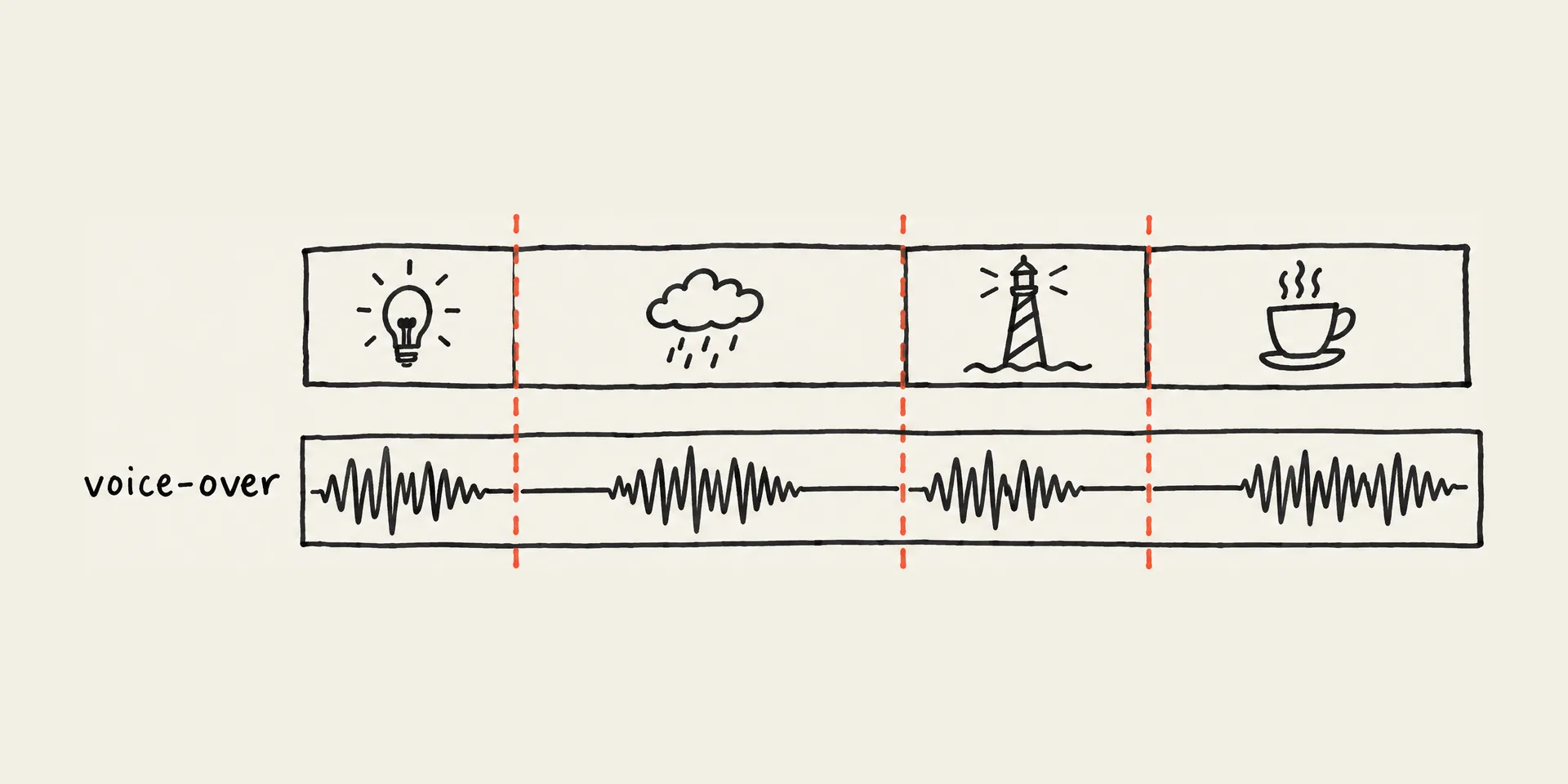
We draw a finished picture: we do not write the script, record the voice-over or build the scenes. For tools that make a whole explainer video, see Whiteboard animation software compared.
Which to use
Your diagram is already a picture
Upload it here: real strokes, outlines then colour, timed to your narration, with or without a hand.
Every step on its own click
PowerPoint Wipe on separate shapes, or one drawn picture per step here.
A diagram on a web page
SVG
stroke-dashoffset: exact order and real strokes, if you have the paths.A route across a map
Trim Paths in After Effects or SVG for the route; draw the map itself here if you want it hand-drawn.
To make a picture look drawn by other means (CapCut masks, Procreate time-lapse, AI video), see Turn an image into a drawing animation.
Sources
Steps from Microsoft Support, MDN and Adobe, read 1 November 2026; we have not run PowerPoint or After Effects for this guide. The SVG runs are ours, the same day, in Chrome 156.
- Replay your ink strokes in Office (Microsoft Support) · read 2026-11-01
- Animate text or objects (Microsoft Support) · read 2026-11-01
- Animation effects available in PowerPoint for the web (Microsoft Support) · read 2026-11-01
- Turn your presentation into a video (Microsoft Support) · read 2026-11-01
- Insert and play a video file from your computer (Microsoft Support) · read 2026-11-01
- stroke-dashoffset (MDN) · read 2026-11-01
- stroke-dasharray (MDN) · read 2026-11-01
- pathLength (MDN) · read 2026-11-01
- SVGGeometryElement: getTotalLength() (MDN) · read 2026-11-01
- Animate a map (After Effects tutorial, Adobe) · read 2026-11-01
FAQ